

Your guide to product information, technical details, and support.
Data Sheets
Product Sheet
Specs Sheet
Presentations
Product Support Documentation
User Manual
Quick Start Guide
Warranty
Videos
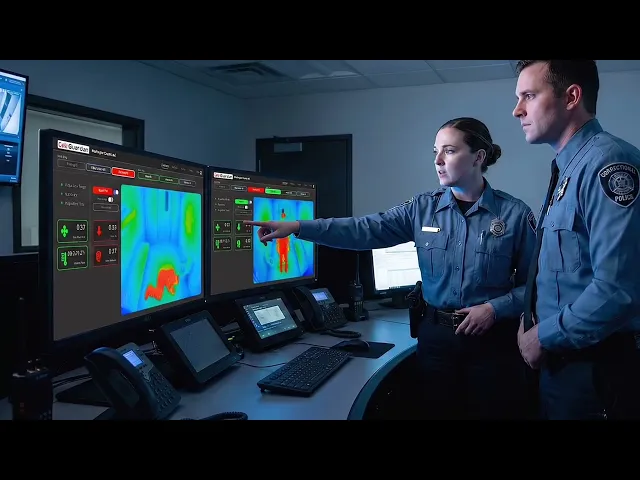
This is your "door-opener" video. It provides a full overview of how Cell-Guardian uses patented sensor fusion technology (radar, thermal, and computer vision) to bridge the gap between manual 15-minute cell checks. It highlights key features like zero-touch monitoring, fall detection, and real-time alerts.
How to Use: Send this in follow-up emails after an initial discovery call or use it as the "main event" during a formal presentation to facility leadership and IT departments.
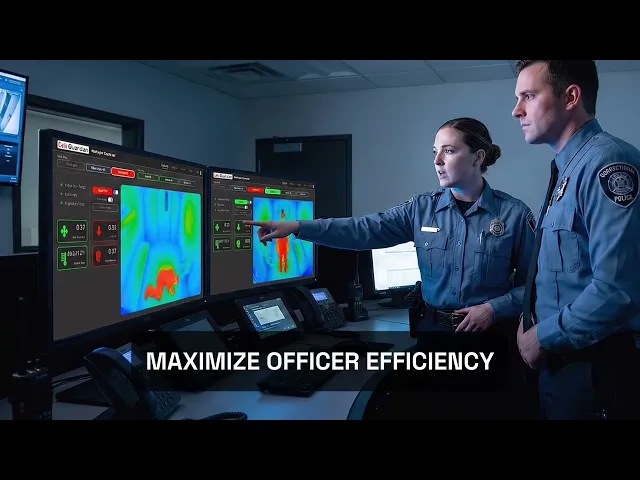
This version is optimized for high-traffic, noisy environments where audio isn't an option. It uses clear on-screen captions to communicate our value proposition—specifically how the AI-driven platform reduces operational liability and staff burnout through automated, non-contact monitoring.
How to Use: Perfect for trade show booths. It allows the technology to speak for itself without you needing to narrate.

This video is framed specifically for public perception. It focuses on the human element of the technology, showing how Cell-Guardian provides a more humane monitoring environment by detecting medical distress or self-harm risks without intrusive physical contact. It emphasizes the facility's commitment to the well-being and safety of those in their care.
How to Use: Share this with Sheriffs or Wardens who are looking to announce the adoption of Cell-Guardian to the press, local government boards, or on social media. It helps them "sell" the investment to their constituents as a win for both safety and fiscal responsibility.
How to Setup Looping Video Playback
To run a video continuously at a booth or conference, use these settings in the standard media players. Note: Most players reset this to "Off" when you close the app, so you’ll need to toggle it on each morning of the show.
Windows 11 (Media Player): Open the video. Look at the bottom playback bar for the Repeat icon (two arrows in a circular loop). Click it so it is highlighted.
Windows 10 (Movies & TV): Open the video. Click the "..." (More options) menu at the bottom right of the window and select Repeat.
Mac (QuickTime Player): Open the video. Go to the top menu bar, select View, and then click Loop.